I am a geography teacher and have been looking for a way to tie everything in that we learn about during the year into one big final project. I have always enjoyed the Zeitgeist videos that Google produces that highlight the most searched stories/events of each year. I decided to incorporate that concept into our class by having students chronicle the major current events worldwide from the start of school to the end, basically Aug-May. They had to pick events each month that they felt should be included in their final video. They needed to explain why they were choosing to highlight a particular event, what made that event more worthy to be chosen than other events. In the end they used the Video Editor to find images and video that showed their view of the past nine months of the major world, national, and local events.
There are many reasons that I think the Video Editor is worthwhile. First off the students get to create a project that they can show the world. Most projects end up being viewed by the student, parents, and teacher, maybe the class, but that is usually it. Using YouTube really does open it up to the world. Secondly students get a project that they can keep. In the past posters have been an acceptable medium, meaning as soon as project is over it goes in the garbage, plus there is only so much you can do with a poster. Next point is copyright infringement. I think the YouTube editor does a great job teaching how to be a responsible creator in digital age. Because you are limited to copyright free images, music, and videos students learn that if they are publishing worldwide they need to make sure they are following the rules. Finally and perhaps most importantly is the ability to create. I allowed my students a lot of freedom in this arena. They could add anything to their video that meant something to them which I felt was important from a creative stance as well as it meant I didn't have to watch the same video 150 times. Each one would be as unique as the students themselves. Students have really enjoyed this aspect of the video editor. They make the final call on edits, clips, and anything they put in or leave out of their video. They also love that others can see their video and they can view what the rest of the class has done. They will do a good job for you, if they know it will be published for the world to see they will make sure it's worthy of that as well.
I have included a few of the videos so you can see what students are able to produce. I consider creation the peak of critical thinking and the YouTube video editor really allows for something special.
Showing posts with label technology. Show all posts
Showing posts with label technology. Show all posts
Sunday, May 18, 2014

Wednesday, May 8, 2013
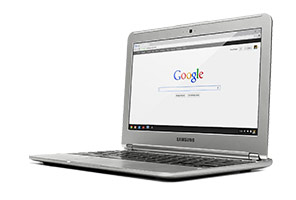
Chromebook Review
Pros:
Cost $250 roughly half the price of any other comparable laptop
Speed Fastest booting computer available. Literally seconds to start up.
Updates One of the problems with a Windows based system is you have to update or you will get behind and you have to pay for each update. Windows XP to Windows 7 to Windows 8 etc... With chromebooks there are automatic updates each day and you don't have to pay for costly operating system updates
Keyboard: In the debate of laptops vs iPads one of the biggest reasons to get a laptop is for the keyboard. For student use it is much more efficient and easier to use.
Virus Free: Because you cannot download potentially harmful software and because Google has added measures of protection the chromebooks are virus free. Currently they are the only virus free computers available, even cell phones can contract a virus.
Multi functional Device: Calculators Solves the problem of getting more calculators
Ease of use: Google Drive. One of the biggest pros of the chromebooks is being able to access Google Drive. Students can work on documents, presentations, etc... and be able to work in class or at home without worry of having a certain program i.e. Microsoft Word. It's free and set up the same as Word, you can access from anywhere with internet access. You can connect and collaborate easily with others. You can also create and not have to worry about saving it, or having it on a usb drive or cd.
Example of student collaborative efforts and what that has done for our class.
Battery Life: 6 hour battery life. Recharges quickly.
Filter: Wifi has automatic filter when you sign in.
Size: Light, thin, and small. Not bulky or heavy.
Camera: There is a camera that allows use for google hangouts. This is another great way for students to connect and collaborate. One great function of google hangouts is the ability to have up to 10 users at once. You can pull in a document, website, or video and be able to view it together and comment on it in real time. Another great feature with hangouts is that you can record your hangout. For me this is great with time zone issues and 7 class periods it is unreasonable and virtually impossible to connect with others depending on where they are from and their availability. Having the option to record and then show other classes is ideal. Really incredible opportunities for classes to connect worldwide.
Google Apps for Education:
Overall: For the cost it is easily the biggest bang for your buck. Great for students allows them to connect, collaborate, create, and critically think.
Cons: A point about the cons is that all of them can also be seen as pros for students use. For example not having a hard drive will prevent students downloading potentially harmful software. While there may be times you might use a cd/dvd these times are few and far between. Not being able to use Microsoft Word may take adjusting, but Google docs is free and very much the same and offers collaboration and ease of sharing, saving, and availibility.
Printer setup: Needs STS to set up printers on all computers, but would have to for any new devices anyhow.
No disk drive: Can't load movies, games, programs from a cd/dvd.
No hard drive: Use google drive to save, can't load other programs, pics and video need to be added to web because there is no hard drive
Microsoft: Can't use word, but for students Google docs is a much better option.
Programs: Can't download programs onto computer, all has to be web based, again this can be seen as a pro in some ways.
I think for a school setting the chromebook is an excellent option for teachers/students. The cost alone makes it an excellent choice. Add in the speed, ease of use, automatic updates, virus protection, and it's a top of the line device as long as you have wifi. You have the capability of using the chromebook offline. I didn't really have time to use that so I am not certain of it's effectiveness, but in a wired school this is a great option for students and teachers alike
Note: After speaking to students the vast majority prefer Google docs to Word because of it's collaboration, saving, and accessibility. I would add for me I like the ability for students to share work with me rather than having 180 copies of paper and so forth.
Subscribe to:
Posts (Atom)